 Duvrin
 Duvrin for macOS
Try Duvrin free.
The whole app, ready when a file is worth keeping.
v2.0.3
macOS Tahoe 26 or later · Apple Silicon · 30 days, no email or card.
Features
What Duvrin does.
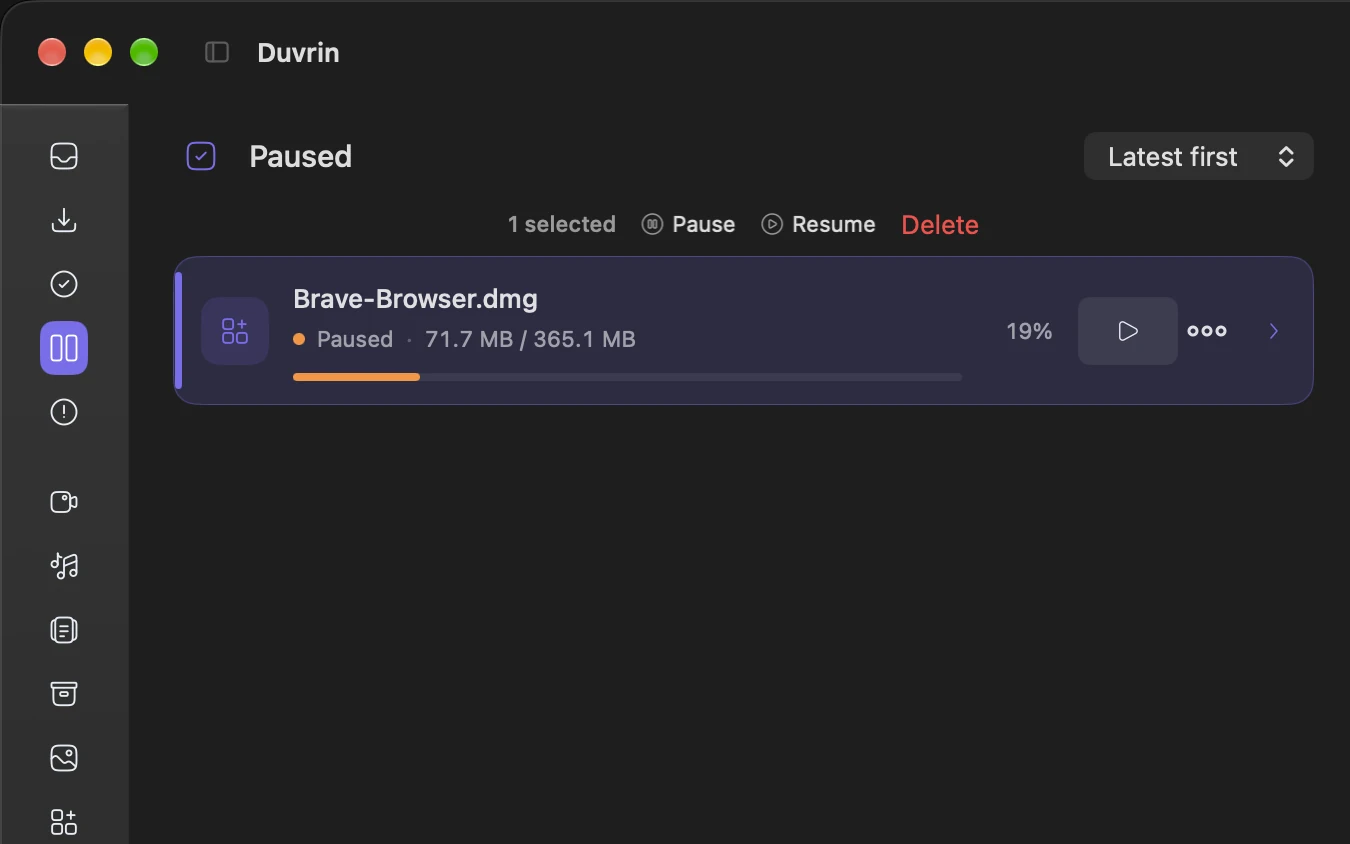
Pause and resume
Stop a download whenever you need to, then continue it later. Progress already received is kept.
- Resumable downloads keep their partial files
- Pause survives sleep and restarts
- Partial files are never silently replaced
Organised library
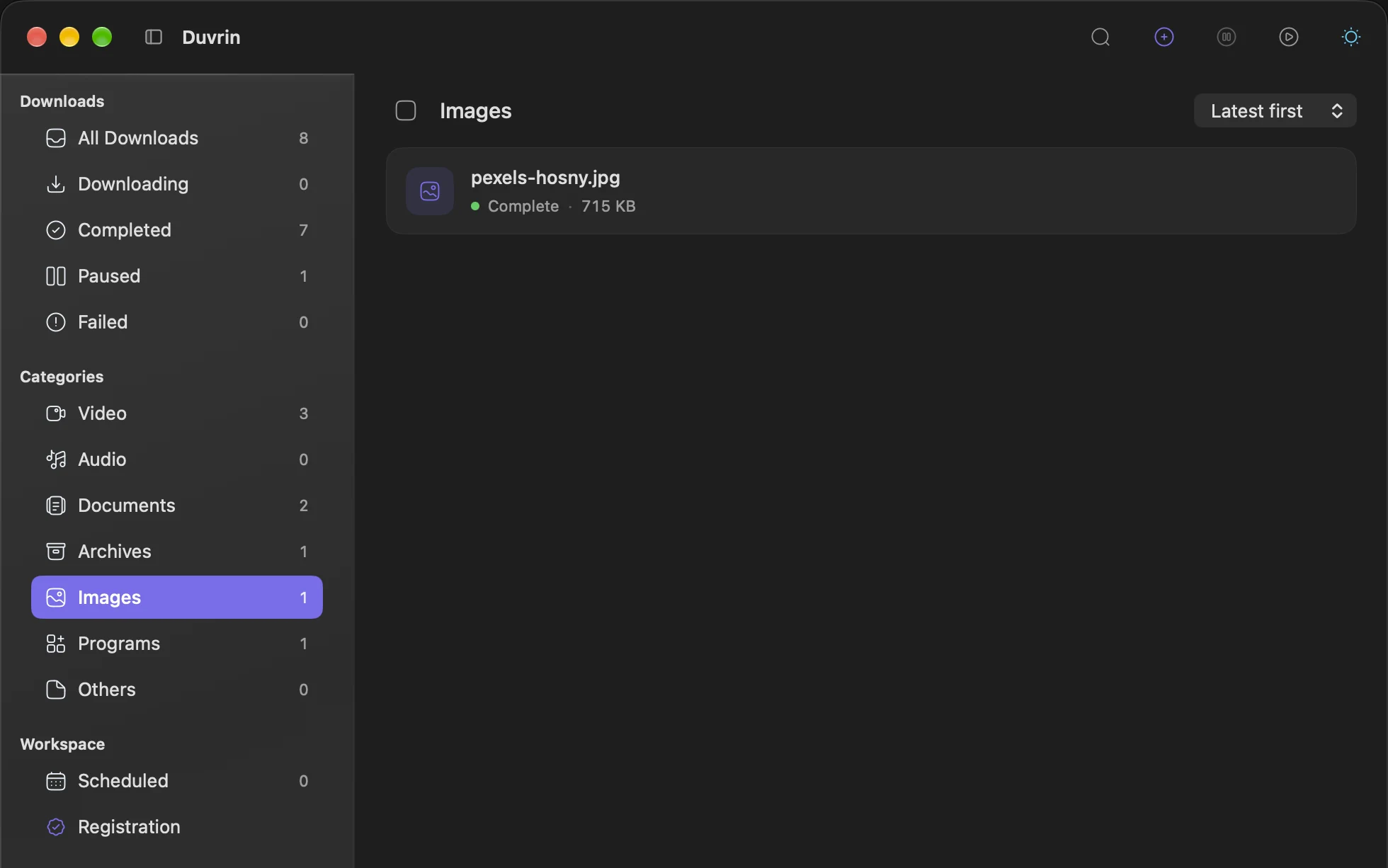
Keep files and media in one library, with the option to sort saved downloads into folders by type.
- Video, audio, documents, archives, images, programs
- Unrecognised files go to Others
- Category folders are an optional setting
Browser companion
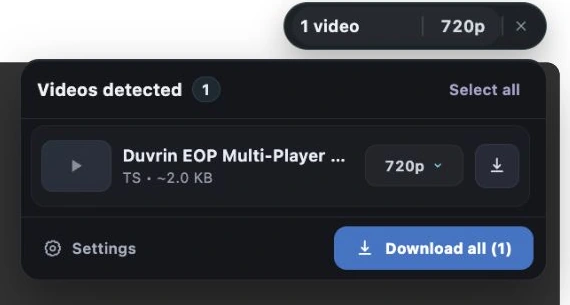
The companion hands supported links and media to the app, with a confirmation step you can choose to skip for later transfers.
- Detects supported file links and media items
- Review the filename and destination in the app
- Optional setting to skip repeated confirmations
Quality and format choice
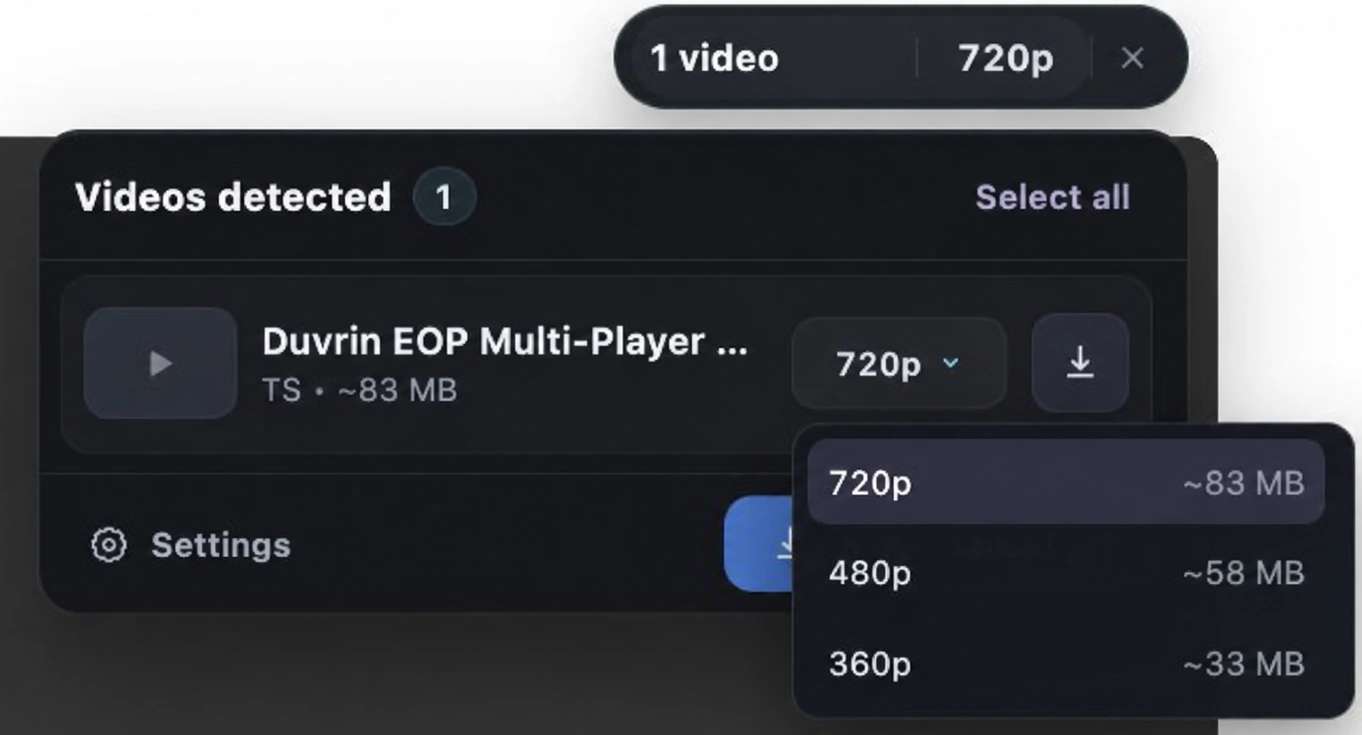
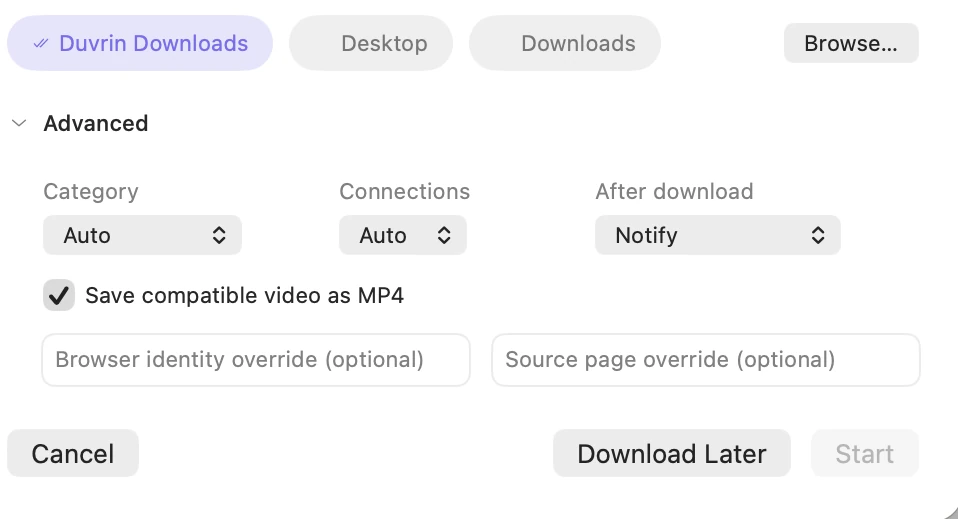
Choose among the qualities a source offers, and save compatible video in a more widely playable format.
- Available qualities are listed per item
- Convertible video can be converted on save
- Only what the source provides is offered
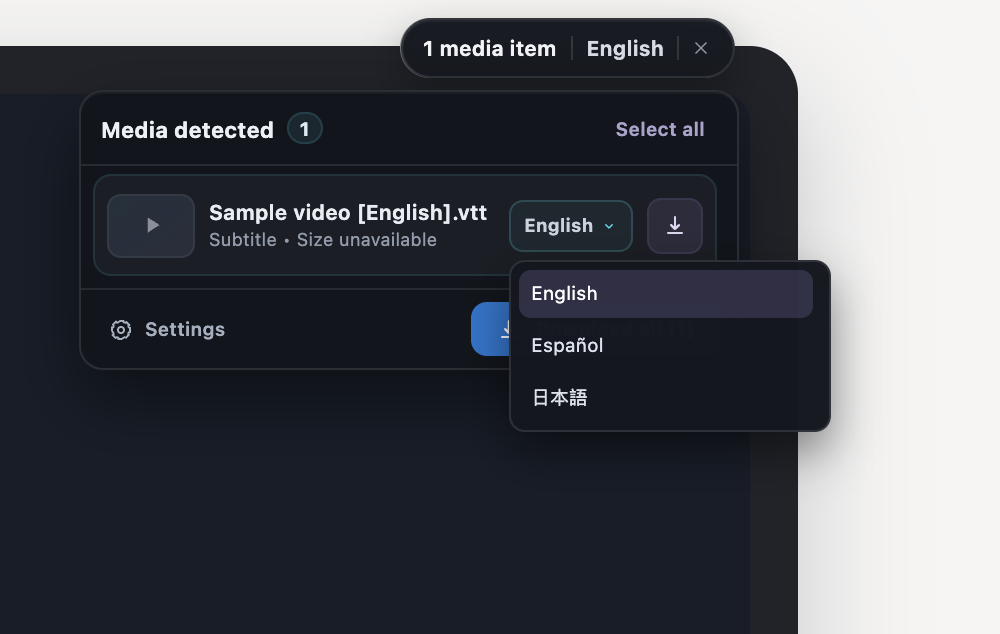
Subtitle selection
When captured media offers subtitles, choose an available language in the companion before saving the subtitle file.
- A subtitle row appears when tracks exist
- Choose from the available track languages
- No tracks means no subtitle row
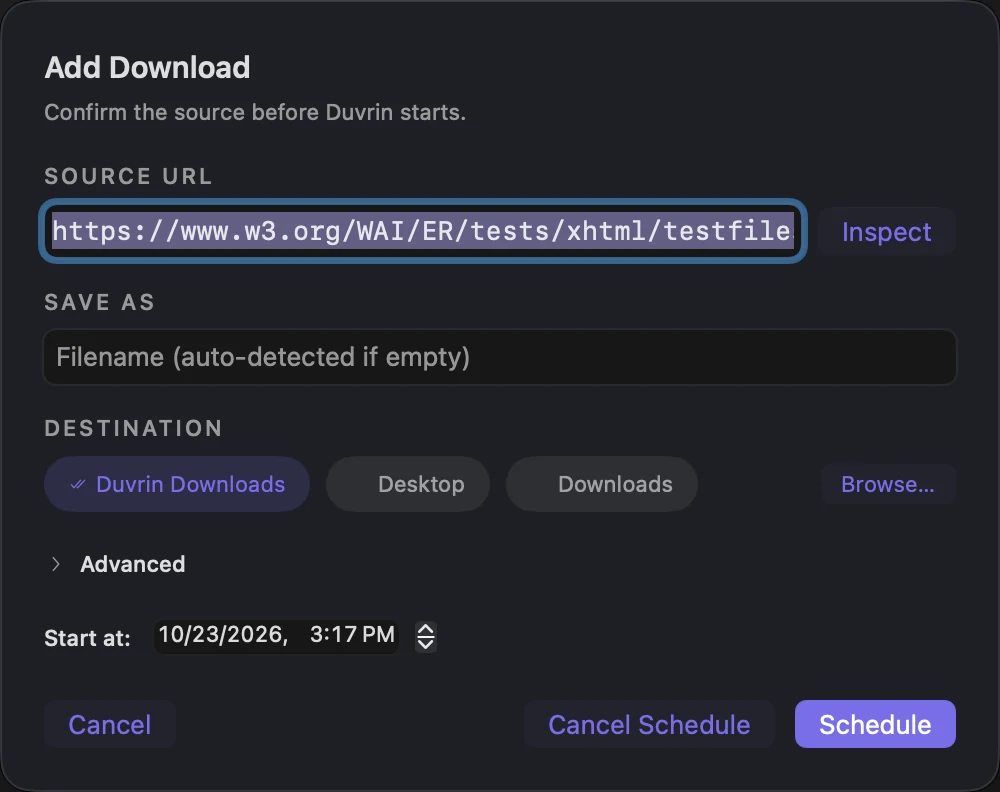
Scheduled downloads
Set a start time and the transfer waits its turn instead of needing the page kept open.
- Choose Download Later and a start time
- Queued alongside your other items
- A schedule does not wake a sleeping Mac
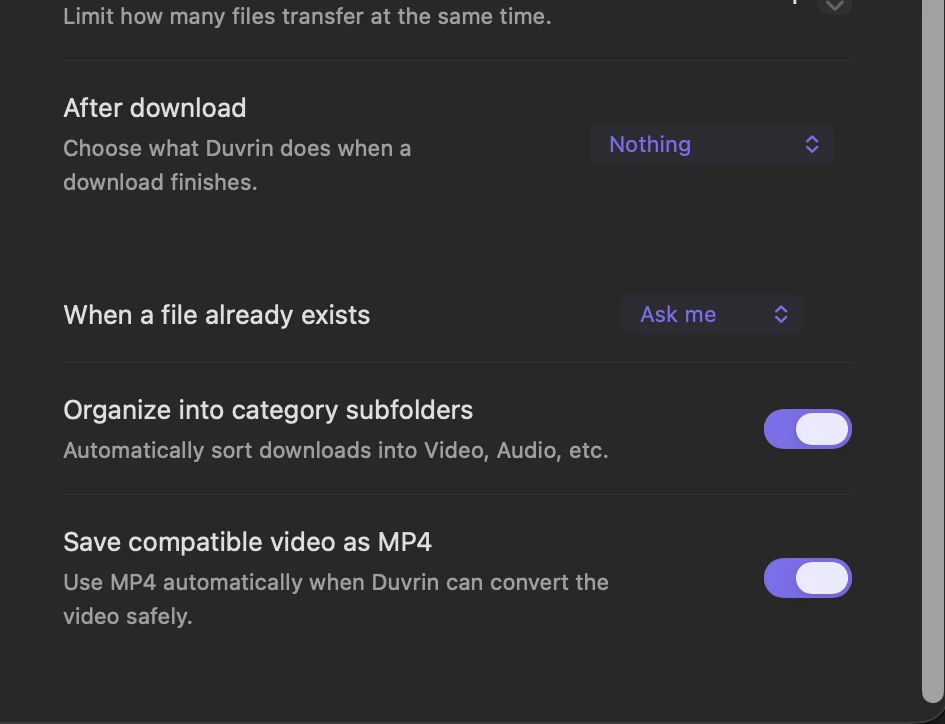
Actions after a download
Choose what the app does when a transfer finishes, and how it treats a file of the same name already on disk.
- Ask, save both, or overwrite
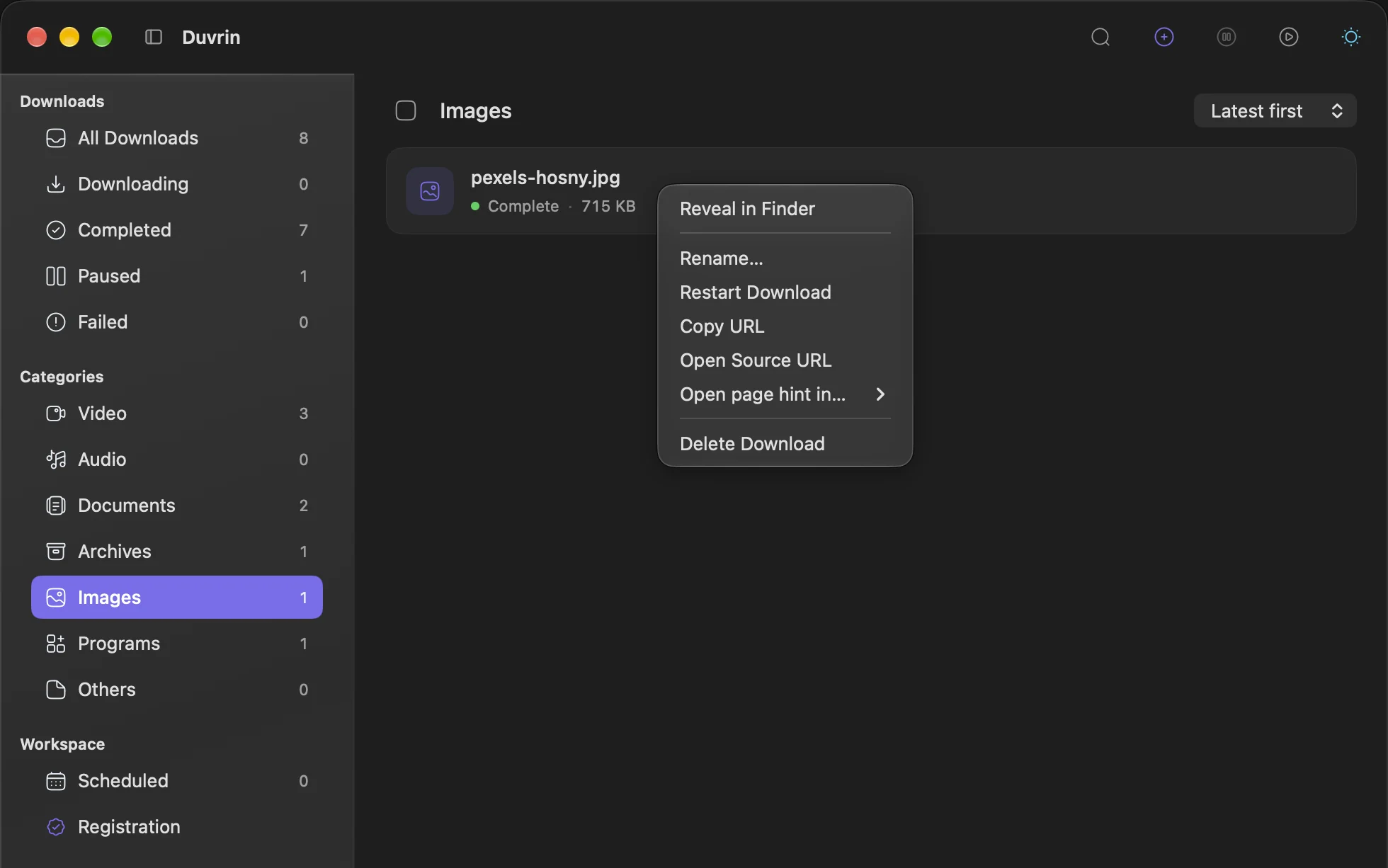
- Rename a finished file in place
- Reveal any finished item in Finder
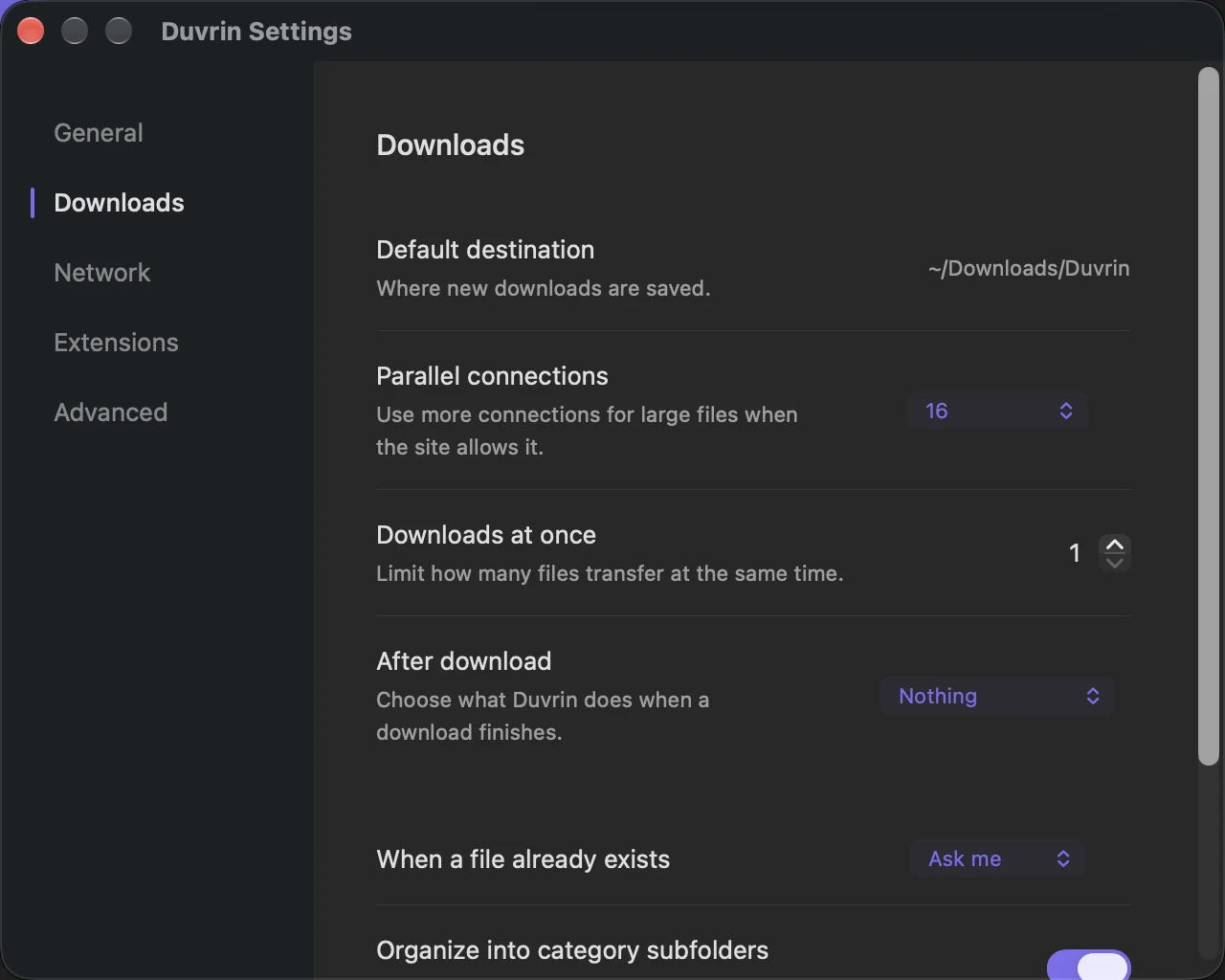
Transfer limits
Cap the download speed on a shared connection, or raise how many transfers run at once when you have room.
- Speed limit with a unit you choose
- Downloads at once
- Parallel connections per download
Finishing step
Some media does extra work after the transfer reaches 100%, so you end up with one usable file rather than a loose bundle.
- The item is not ready until it completes
- One output file per download
- The destination is checked before saving
Rename saved files
Give a completed file a clearer name directly from the library without starting another download.
- Rename from a completed item
- The saved file is renamed in place
- No repeat transfer is needed
Delete or keep files
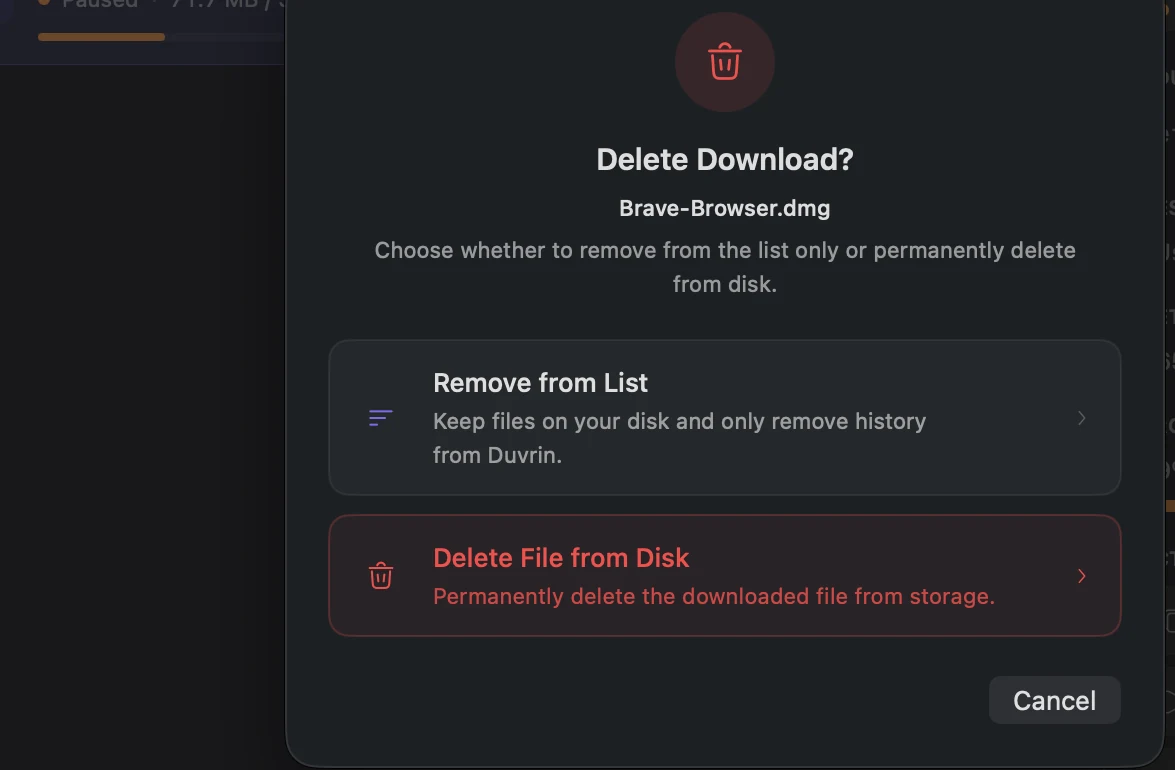
Choose whether removing a finished download clears just its entry or deletes the saved file too.
- Remove from List keeps the saved file
- Delete File from Disk removes the saved file
- You explicitly choose which action to take
Appearance and icons
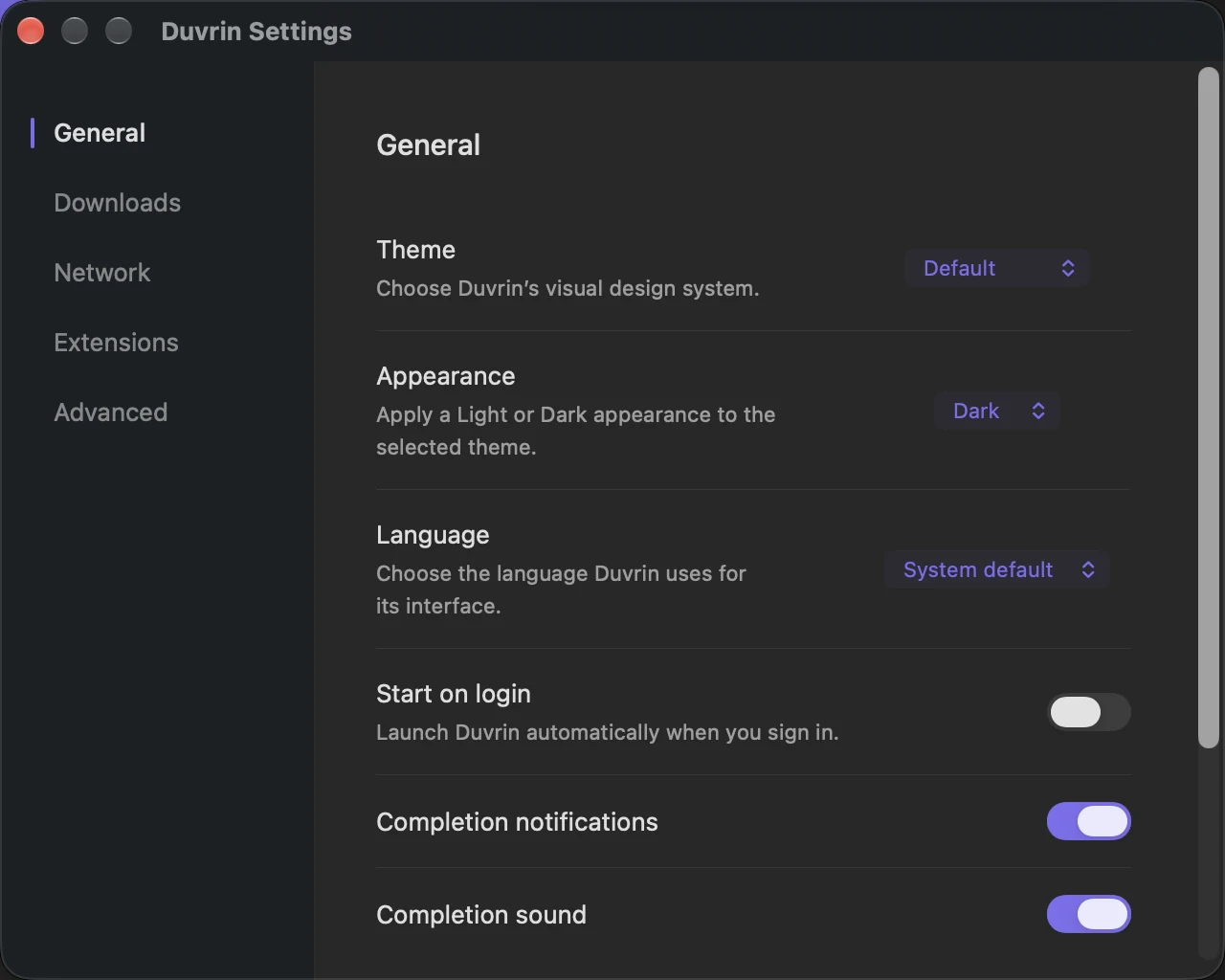
Choose a light or dark appearance, and see distinct icons for different file categories in the library.
- Native light and dark appearance
- Category icons in the library
- The choice applies without a reload
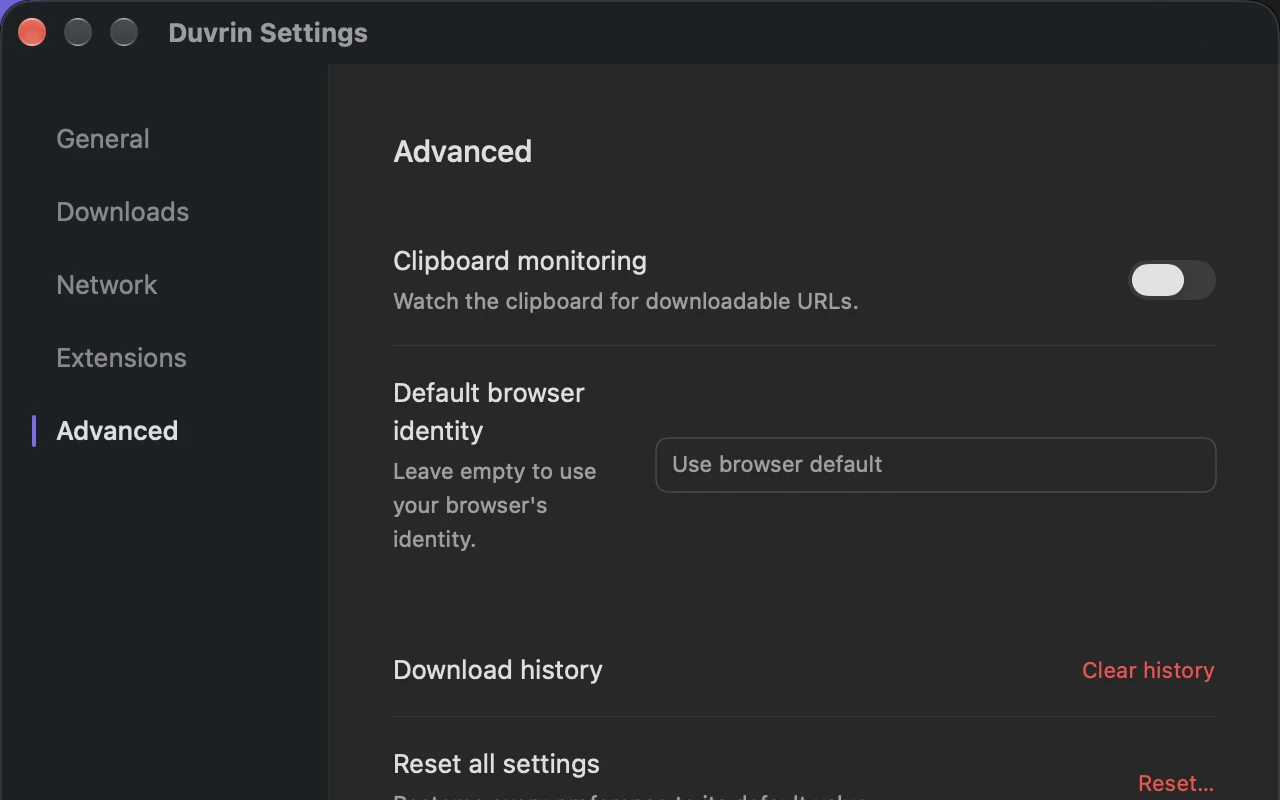
Local download history
Download state is kept on your Mac. Request details captured from a page are never written to logs.
- History held locally, not uploaded
- Captured request headers are never logged
- No cloud service proxies the transfer
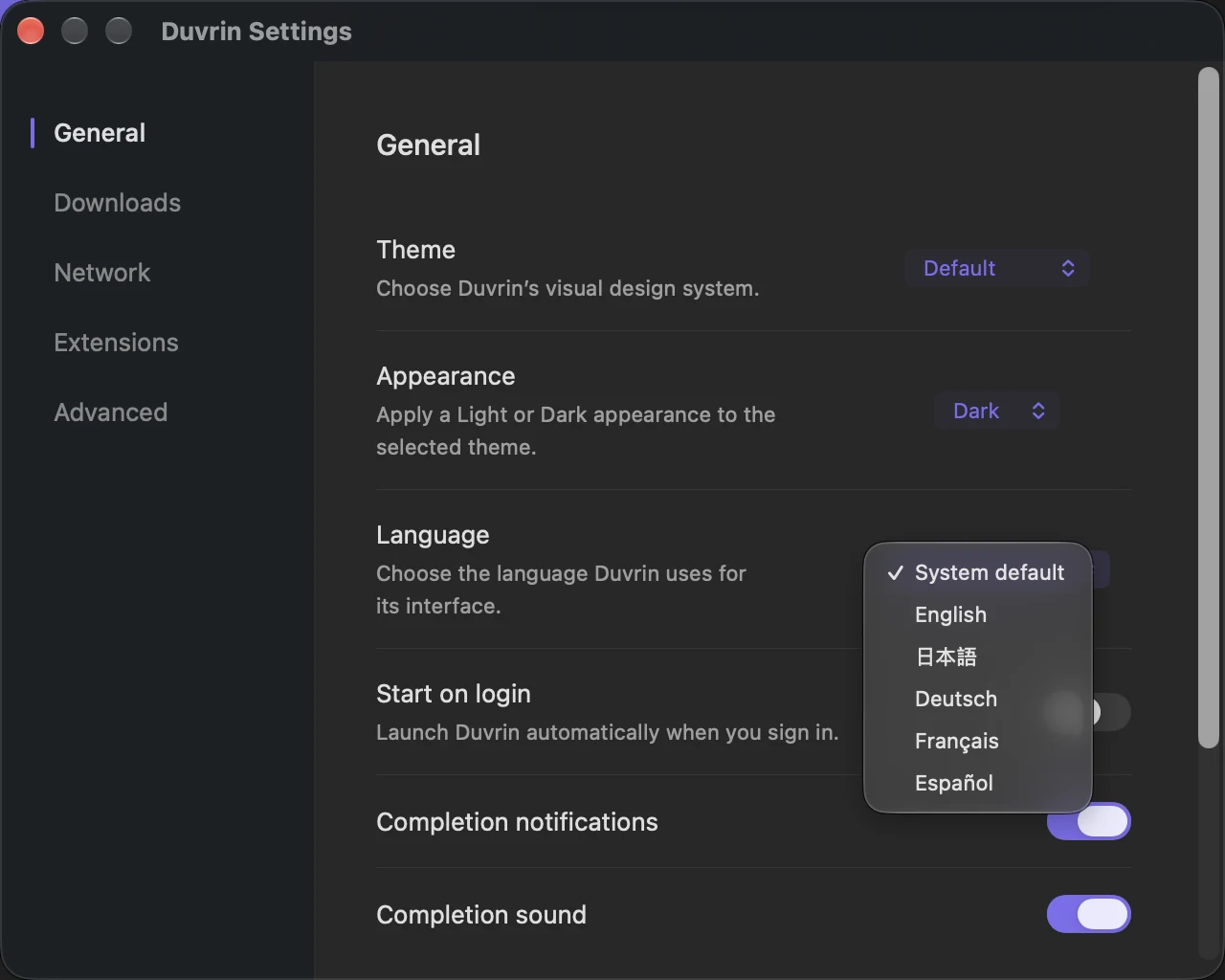
Multiple languages
The Mac app and browser companion offer five interface languages. Choose the app language in General settings.
- English, German, French, Spanish and Japanese
- The app has its own language setting
- Relaunch to apply an app language change
Want the detail behind each one?
Explore the product